What Does Limited Series Mean On Netflix? Top 10 Must-Watch!
Wondering what does limited series mean on Netflix? This guide explains everything and introduces 10 best Netflix limited series.

VidiCable All-in-one Recorder
 By Selene Ashford
YouTube is one of the largest platforms for videos, music, and podcasts. Sometimes, you may only need the audio from a YouTube video to listen to offline. That’s why many users search for ways to download audio from YouTube and save it as an MP3 or other audio format.
In this guide, we’ll explore 5 effective methods to download YouTube audio, each with clear step-by-step instructions. Whether you want to save YouTube audio on Windows PC, Mac, or mobile devices such as Android phones, this article has you covered. By following these methods, you can easily extract audio from YouTube videos and save it for offline listening in your preferred format.
Disclaimer: This article is for informational purposes only. Downloading audio from YouTube may be subject to YouTube’s Terms of Service and copyright laws. Users should only download content they own, have permission to use, or that is in the public domain or under Creative Commons licenses. Always respect the rights of content creators and applicable laws when using downloaded content.
Downloading audio from YouTube is not always illegal, but it depends on the type of content and how you use it. Here are the main situations where downloading audio is generally considered acceptable:
If you are downloading audio from videos you personally uploaded, you have full rights to access and reuse that content. This is completely legal since you own the material.
Videos that are in the public domain are free from copyright restrictions and content where the copyright has expired. You can legally download and use the audio from these videos without needing permission, but always verify the specific license type before proceeding.
YouTube Premium provides an "offline mode." Using YouTube Premium to download videos or audio for offline listening within the app is fully legal and compliant with YouTube’s terms of service. However, these downloads are restricted to the app and cannot be used as standalone audio files.
VidiCable is a powerful desktop tool available for both Windows PC and Macs. With its built-in audio extraction feature, users can easily download audio from YouTube by simply pasting a YouTube URL. The program quickly converts YouTube videos into high-quality MP3 files while preserving the original sound quality, supporting MP3 bitrates up to 320 kbps.
In addition to saving audio, VidiCable also works as a YouTube video downloader, allowing users to download YouTube videos in MP4 or MKV format with resolutions of up to 8K. Whether you want to enjoy high-quality music or watch ultra-HD videos offline, VidiCable offers a reliable solution for both audio and video downloads.

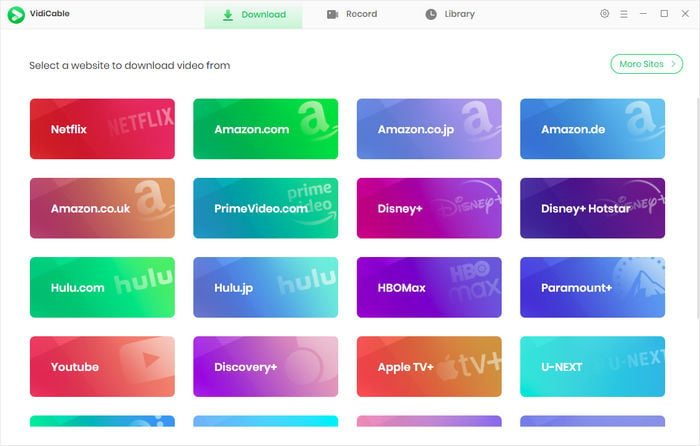
Open VidiCable on your computer. On the platform selection page, select YouTube from the list of supported services.
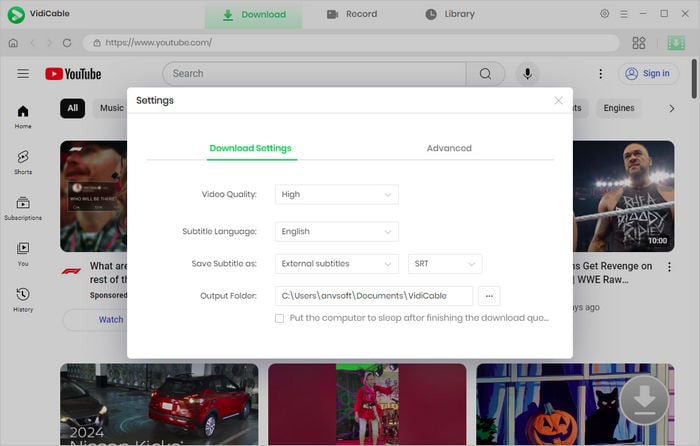
Before starting the download, click the Settings icon in the upper-right corner. Here you can configure your preferences, such as the output format (MP3 for audio), save location, and other quality settings.
Use the built-in browser to browse YouTube and open the video that contains the audio you want to download.
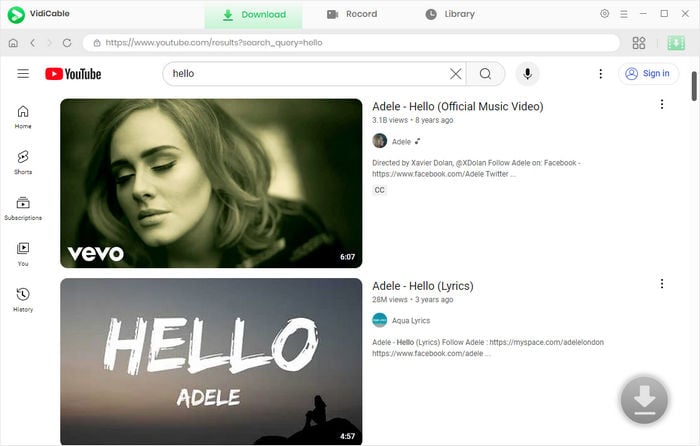
After opening the video, click the Download button. Select Audio if you want to extract the audio. You can then choose between MP3 format for wider compatibility or Original Audio to keep the source sound quality.
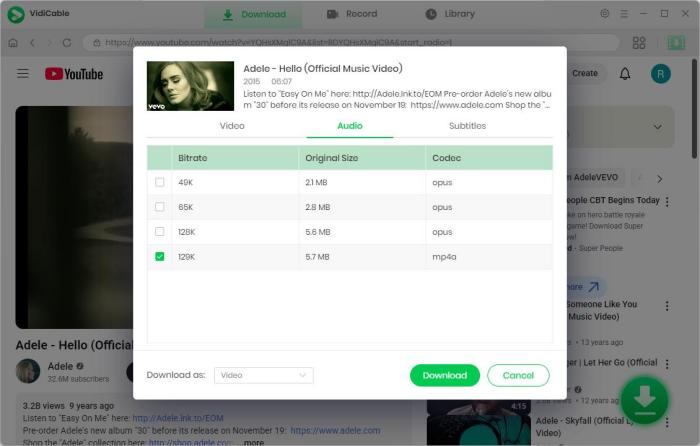
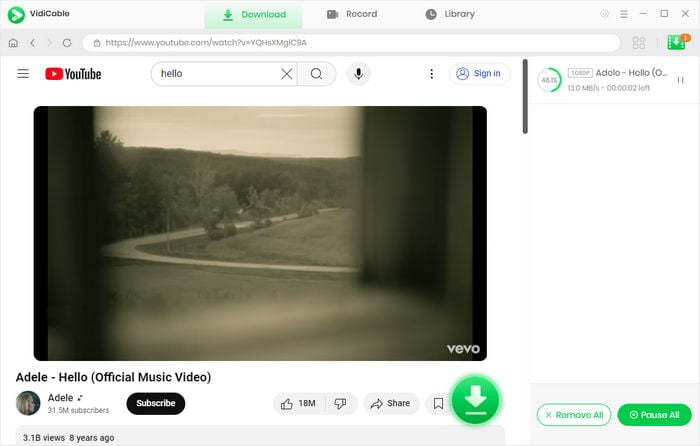
Click Download to start saving the audio from Instagram. Once the process finishes, the audio file will be stored on your computer, allowing you to play it offline anytime without expiration.
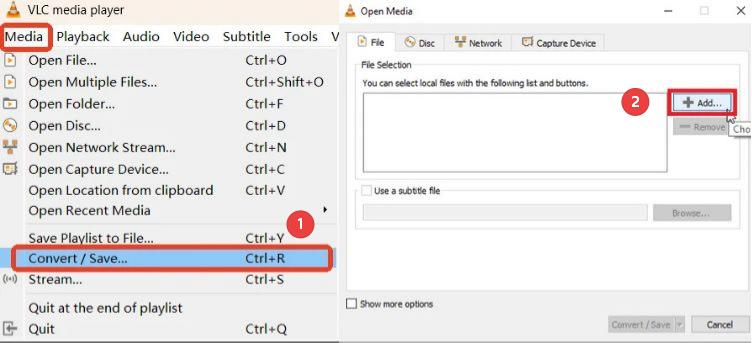
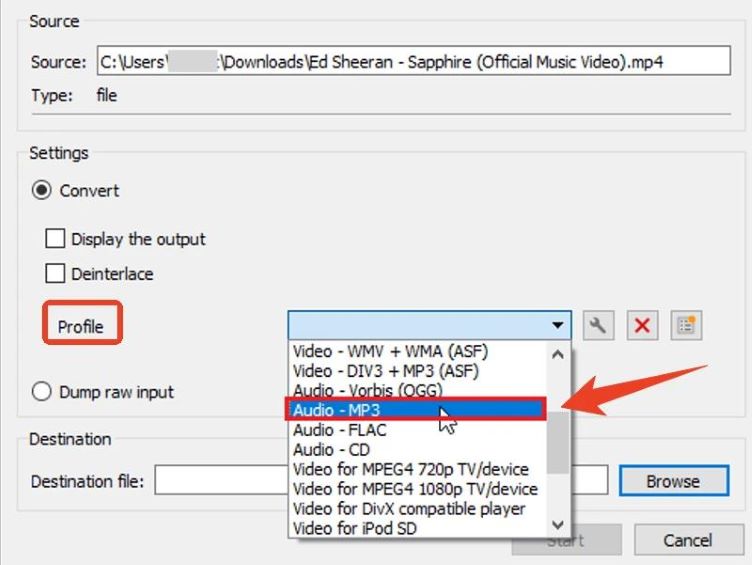
VLC Media Player is also a useful tool that can convert videos and extract audio files. To extract audio from a YouTube video using VLC, follow the steps below.
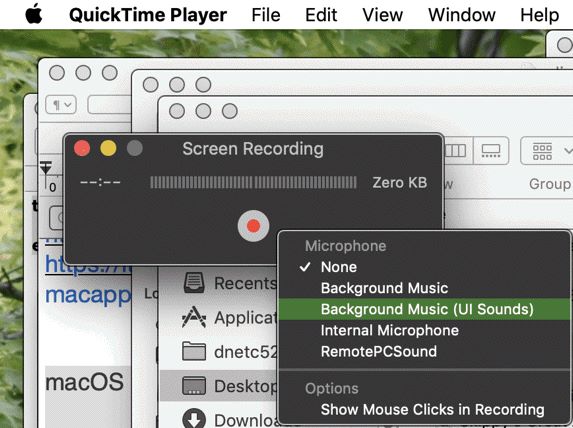
QuickTime Player does not directly download audio from YouTube, but you can use its built-in screen recording feature to record and save the audio from a YouTube video on your Mac. Please follow these steps:
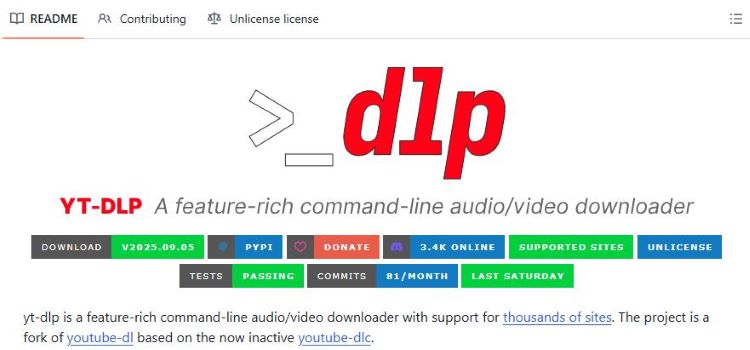
yt-dlp is a powerful open-source command-line tool that allows users to download videos and extract audio from YouTube and many other websites. Follow the steps below to download audio from YouTube using yt-dlp.
Using your Android device’s built-in screen recorder is a practical method if you’re unable to directly download audio from YouTube. While it’s not a true “download” method, it allows you to capture audio from YouTube videos for offline listening.
There are many free tools available to download audio files from YouTube, such as QuickTime Player and VidiCable. If you’re looking for a simpler download process, VidiCable is a better choice. It allows you to download YouTube audio as high-quality MP3 files, including options to preserve the original audio quality. In addition, it also works as a YouTube video downloader, enabling you to save videos in MP4 format with resolutions up to 8K.
Downloading audio from YouTube can be legal in certain cases, but it depends on the content and how it is used. According to YouTube’s Terms of Service, downloading audio is generally not allowed unless YouTube provides an official download option, such as through YouTube Premium.
However, downloading audio may be acceptable if it involves your own uploaded videos, public domain content, or Creative Commons videos that allow reuse. To avoid copyright issues, always make sure you have permission from the content owner and use the audio for personal purposes only.
Yes, it is possible to download audio from YouTube playlists by using some tools that support playlist downloads. VidiCable is a tool that allows you to extract the audio from multiple videos in a playlist and save them as MP3s for offline playing.
There are several ways to download audio from YouTube Shorts, and one of the most common options is using online downloaders. However, many of these websites can be unreliable and may redirect users to suspicious pages, which could expose your device to ads or malware.
For a safer and more stable experience, it’s recommended to use a trusted desktop tool such as VidiCable. With VidiCable, you can easily download audio from YouTube Shorts and save it as an MP3 file, while maintaining high audio quality. Compared with many online tools, desktop software offers better security, fewer interruptions, and better download performance.
In this guide, we covered 5 easy ways to download audio from YouTube, ranging from media players and command-line tools to mobile solutions and desktop software. You can choose a method depending on your device, technical experience, and audio quality requirements.
If you want a fast, stable, and high-quality YouTube downloading solution, VidiCable can make the process much easier by letting you save YouTube audio as MP3 while preserving the original sound quality. No matter which method you choose, always make sure to respect copyright rules and use downloaded content responsibly.
If you're a YouTube creator looking to protect privacy in your videos, AVCLabs Video Blur AI is the perfect tool for you. It allows you to blur faces, objects, or backgrounds effortlessly, ensuring compliance with privacy standards and enhancing viewer focus. Learn More >>
Selene Ashford | Senior Writer
Selene Ashford is a Senior Writer with seven years of experience in the industry. She has a deep understanding of video streaming platforms and offers unique insights. Her articles are known for providing valuable advice and demonstrating professional credibility, making her a trusted voice in the field.
All Author PostsWondering what does limited series mean on Netflix? This guide explains everything and introduces 10 best Netflix limited series.
Download and watch 4K or 8K YouTube content offline.
