- Home
- Help Center
- FAQs
VidiCable FAQs
Q1. How do I register VidiCable?
To register VidiCable, please follow these steps:
- Click on the Key icon or the Menu icon located in the upper right corner of the interface.
- Select "Register" from the options that appear. This will open a registration popup dialog.
- In the registration popup dialog, you can copy and paste the registration email and license code into the provided fields.
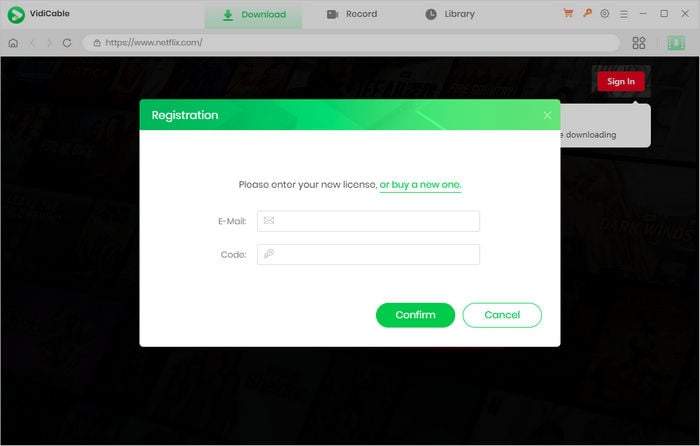
After placing an order, the license key will be sent to the email address you provided during the purchase process. Usually, you should receive the license key shortly after the order is validated. If you haven't received the license key within a few minutes, please check your Spam or Promotion Email folder in case it was mistakenly filtered as spam or promotional content. Occasionally, delays caused by internet or system glitches, email typos, or other factors may affect the delivery time of the registration email. If you still encounter any issues, please don't hesitate to contact our support team for assistance.
Q2. What should I do if I receive an "Invalid Code" error?
1. Please make sure that the installed program matches the product and version you purchased. If you are using the wrong version or platform, the registration code may not work.
2. Please also check that the registration code exactly matches the code in your purchase confirmation email. Make sure there are no extra spaces or incorrect characters.
3. One registration code can only be used on one device at a time. If the code has already been activated on another device, please log out of or deactivate the previous device before trying to activate it on your current device.
4. If the issue persists, please contact us for further assistance.
Q3. Which platforms are supported by VidiCable?
VidiCable supports free video recording from various platforms including Twitter, YouTube, Vimeo, TikTok, Dailymotion, Abema, and more. By subscribing to VidiCable, you will also gain access to a powerful streaming video recorder that allows you to download shows and movies from popular video streaming sites such as Netflix, Amazon Prime, Disney+, Hulu, Max, Paramount+, Discovery+, U-Next, Apple TV+, Peacock, DMM, Hotstar, NHK+, Crunchyroll on both Windows and Mac computers.
Q4. In what format are the downloaded videos available?
The downloaded videos from VidiCable are available in MP4 or MKV format. This means you can enjoy them on most devices. You can also change the output format by accessing the General Setting window.
Q5. How can I speed up the download process?
VidiCable supports hardware acceleration with Intel/NVIDIA/AMD graphics cards, which allows for smoother program operation and faster download speeds. However, to fully utilize hardware acceleration, it is important to have the latest version of the graphics cards installed on your computer. Here's how you can check and upgrade your graphics cards:
1. Upgrading your graphics card is simple. Just right-click on the Windows Start menu, select "Device Manager," find "Display adapters," right-click on your graphics card, and choose "Update driver" from the drop-down menu.
2. In case the driver update fails, you can also install the latest graphics driver directly from the manufacturer's website: Intel / NVIDIA / AMD (select the appropriate link based on your computer). After upgrading the graphics driver, please restart your computer to activate the changes.
Q6. What are the differences between External, Internal, and Hardcode Subtitles?
VidiCable offers three different subtitle encoding options to accommodate users' needs for playing videos on various media players or devices. The "External subtitles" mode allows you to save subtitles as separate files.
The "Internal subtitles" mode incorporates subtitles into the output video and allows you to save multiple language subtitles that can be switched as needed while playing the video on some players such as VLC Media player.
If your media players or devices do not have the capability to switch or add subtitles, the "Hardcode subtitles" mode is an excellent option for embedding subtitles directly onto your video. However, please note that you can only save subtitles in one language at a time with this mode.
Q7. How can I obtain videos in HD quality on Netflix?
1. To obtain HD-quality videos on Netflix, first, make sure that Netflix plays videos in HD quality. Sign into netflix.com, select your profile, and under My Profile, choose Playback Settings. Then, under Data Usage, select High.
If you have completed the above settings but still see poor video quality (around 480P), follow these steps to check the original video's resolution: open the Netflix web player on Chrome browser and play the video. Press "Ctrl" + "Alt" + "Shift" + "D" on the keyboard simultaneously, and details of the video will pop up where you can check the video's resolution.
2. Netflix provides only 480P quality for videos from Disney and Marvel on the Chrome Web player. Therefore, currently, VidiCable does not support recording those videos in HD quality.
Q8. How to Resolve Other Error Codes or What to Do If the Problem Persists?
If you encounter error codes not listed above or if the issue persists despite following the provided solutions, please share the following information with our support team at [email protected] for further analysis:
- Your computer OS, the streaming service you are using, your current subscription plan, and the region of your account.
- A detailed description of the issue, including what happened, what troubleshooting steps you have already tried, and the results.
- Screenshots or a video showing the issue, if available.
- The URL of the video you were trying to download or process.
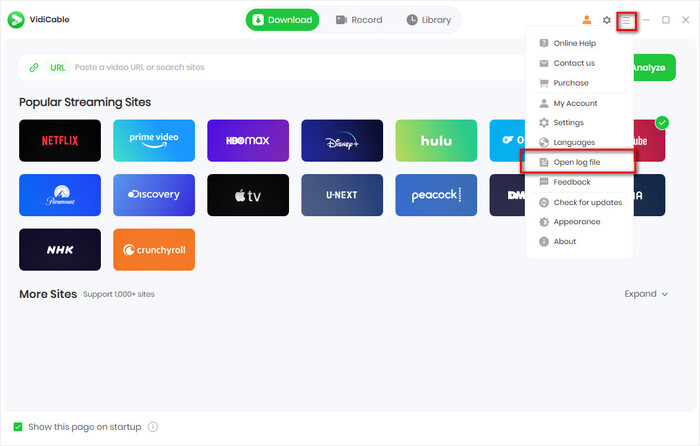
- Log files, which you can find by clicking the Menu icon in the upper right corner > Open Log File.
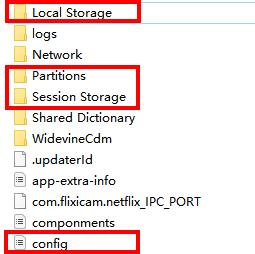
- Login cache files. Please send the relevant files located in the same folder as the log files. As these files may be large, we recommend compressing them into a ZIP file and sharing them through a file transfer service. You can use Buzzheavier to upload and share the ZIP file with us.
Haven't found the answer? We can help.
Contact UsContact us and we’ll get back to you as soon as possible.
